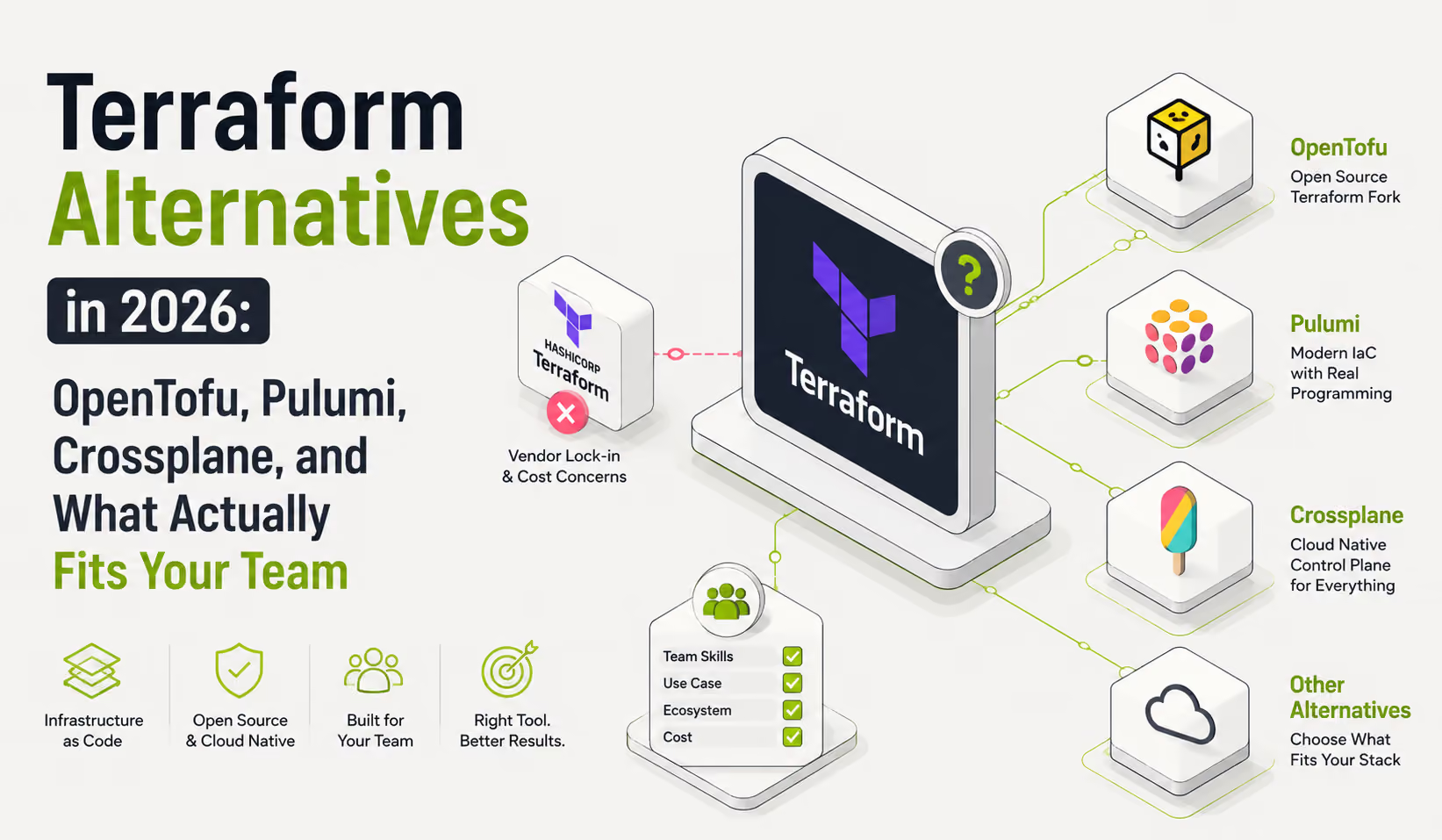
OpenTofu is the open-source fork of Terraform, maintained by the Linux Foundation. It is a drop-in replacement for Terraform — same configuration language, same providers, same workflow — but fully open-source under the Mozilla Public License.
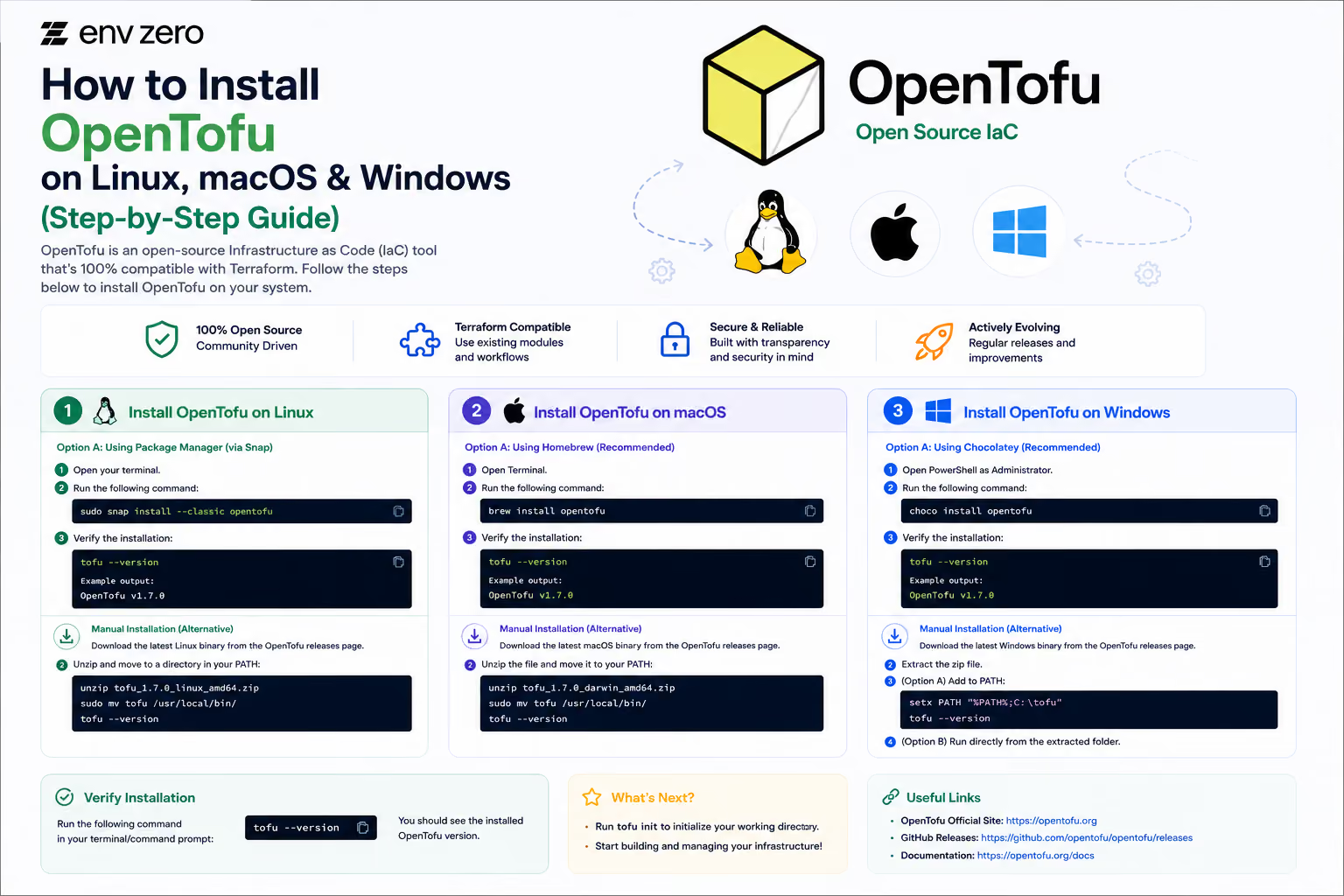
This guide walks you through installing OpenTofu on Linux, macOS, and Windows, plus how to use tenv to manage multiple versions, verify your installation, and run your first plan.
The whole process takes about five minutes.
Prerequisites
Before you install OpenTofu, make sure you have the following:
- A machine running Linux (Ubuntu, Debian, RHEL, or similar), macOS, or Windows 10/11
- Terminal access (Command Prompt or PowerShell on Windows)
- Administrator or sudo privileges for package installation
- An internet connection to download packages
💡 OpenTofu is a direct replacement for Terraform. If you already have Terraform installed and working configurations, you can switch to OpenTofu without changing your .tf files. Just swap the binary.
Install OpenTofu on Linux
There are three ways to install OpenTofu on Linux. Choose the one that fits your setup best.
Option 1 — APT Package Manager (Ubuntu / Debian)
This is the recommended method for Ubuntu and Debian-based systems. It gives you automatic updates through your package manager.
Installing OpenTofu on Ubuntu or other Debian-based Linux distributions involves adding the official package repository and its GPG signing key. This ensures future updates can be managed directly through the system package manager.
# Step 1: Download and add the OpenTofu GPG signing key

curl -fsSL https://get.opentofu.org/opentofu.gpg | \
  sudo tee /etc/apt/keyrings/opentofu.gpg > /dev/null

# Step 2: Add the OpenTofu APT repository

echo "deb [signed-by=/etc/apt/keyrings/opentofu.gpg] \
  https://packages.opentofu.org/opentofu/tofu/any/ any main" | \
  sudo tee /etc/apt/sources.list.d/opentofu.list > /dev/null

# Step 3: Update package index and install

sudo apt-get update
sudo apt-get install -y opentofu
Option 2 — YUM / DNF Package Manager (RHEL / Fedora / Amazon Linux)
On RHEL, CentOS, Rocky Linux, AlmaLinux, and Fedora systems, OpenTofu can be installed by adding the official YUM repository. Once configured, you can install and update OpenTofu directly through your distribution's package manager.
# Step 1: Add the OpenTofu YUM repository

sudo tee /etc/yum.repos.d/opentofu.repo <
Option 3 — Direct Binary Download (Any Linux Distribution)
If you prefer not to use a package manager or need a specific version, you can download the binary directly:
If your Linux distribution does not provide OpenTofu packages, you can perform a manual installation by downloading the release archive directly from GitHub. This approach gives you full control over the exact version being installed.
# Replace 1.9.0 with the latest version from
# github.com/opentofu/opentofu/releases

TOFU_VERSION="1.9.0"

# Download the binary for your architecture (amd64 shown)

curl -fsSL \
"https://github.com/opentofu/opentofu/releases/download/v${TOFU_VERSION}/tofu_${TOFU_VERSION}_linux_amd64.zip" \
  -o tofu.zip

# Unzip and move to a directory in your PATH

unzip tofu.zip

sudo mv tofu /usr/local/bin/tofu

sudo chmod +x /usr/local/bin/tofu

# Clean up

rm tofu.zip
Install OpenTofu on macOS
The easiest way to install OpenTofu on macOS is through Homebrew. If you do not have Homebrew installed, visit brew.sh first.
Option 1 — Homebrew (Recommended)
On macOS, the simplest way to install OpenTofu is through Homebrew. Homebrew automatically handles downloading, installing, and managing future updates, making it the recommended installation method for most users.
# Install OpenTofu via Homebrew

brew install opentofu

# To upgrade to the latest version later:

brew upgrade opentofu
Option 2 — Direct Binary Download (macOS)
If you prefer not to use Homebrew:
If you prefer not to use Homebrew, you can manually install OpenTofu by downloading the release archive directly from GitHub. This method is useful when you need a specific version or want complete control over the installation process.
TOFU_VERSION="1.9.0"

# Download for Apple Silicon (arm64)

curl -fsSL \
"https://github.com/opentofu/opentofu/releases/download/v${TOFU_VERSION}/tofu_${TOFU_VERSION}_darwin_arm64.zip" \
  -o tofu.zip

# For Intel Mac, replace darwin_arm64 with darwin_amd64

unzip tofu.zip

sudo mv tofu /usr/local/bin/tofu

sudo chmod +x /usr/local/bin/tofu

rm tofu.zip
💡 Apple Silicon (M1/M2/M3) users should download the arm64 build. Intel Mac users should download the amd64 build. The Homebrew installation handles this automatically.
Install OpenTofu on Windows
Option 1 — Winget (Windows Package Manager)
Winget is built into Windows 10 (version 1809+) and Windows 11. It is the simplest installation method:
Windows users can install OpenTofu quickly using the built-in Winget package manager. This method automatically downloads, installs, and configures OpenTofu, making setup straightforward and easy to maintain.
# Open PowerShell or Command Prompt and run:

winget install OpenTofu.OpenTofu

# Restart your terminal after installation

# Then verify:

tofu --version
Option 2 — Chocolatey
If you use Chocolatey as your Windows package manager:
If you use Chocolatey on Windows, installing OpenTofu is as simple as running a single command. Chocolatey handles the download, installation, and future package updates automatically.
Option 3 — Manual Installation (PowerShell)
For environments where package managers are unavailable, you can manually install OpenTofu on Windows using PowerShell. This method downloads a specific version, extracts it to a local directory, and adds the executable to the system PATH.
$TOFU_VERSION = "1.9.0"

# Download the Windows zip

Invoke-WebRequest -Uri "https://github.com/opentofu/opentofu/releases/download/v$TOFU_VERSION/tofu_${TOFU_VERSION}_windows_amd64.zip" `
  -OutFile "tofu.zip"

# Extract

Expand-Archive -Path "tofu.zip" -DestinationPath "C:\tofu"

# Add to PATH (run as Administrator)

[System.Environment]::SetEnvironmentVariable(
  "PATH",
  $env:PATH + ";C:\tofu",
  [System.EnvironmentVariableTarget]::Machine
)

# Restart your terminal, then verify

tofu --version
⚠️ After adding OpenTofu to your PATH on Windows, you must restart your terminal (or open a new PowerShell/Command Prompt window) for the PATH change to take effect.
Using tenv for Version Management
If you work across multiple projects that require different versions of OpenTofu (or Terraform), tenv is the tool to use. It is a version manager that lets you install, switch between, and pin specific versions — similar to nvm for Node.js or pyenv for Python.
Installing tenv
tenv is a version manager for OpenTofu, Terraform, Terragrunt, and related tools. It makes it easy to install, switch, and maintain multiple versions across different projects and environments.
# macOS via Homebrew

brew install tofuutils/tap/tenv

# Linux — download the latest binary

curl -fsSL https://github.com/tofuutils/tenv/releases/latest/download/tenv_linux_amd64.tar.gz \
  | tar -xz

sudo mv tenv /usr/local/bin/tenv

# Windows via Winget

winget install tofuutils.tenv
Installing and Switching OpenTofu Versions with tenv
After installing tenv, you can use it to manage multiple OpenTofu versions effortlessly. Whether you need the latest release, a specific version, or project-level version pinning, tenv provides a consistent workflow across development environments.
# Install the latest stable version of OpenTofu

tenv tofu install latest

# Install a specific version

tenv tofu install 1.8.5

# Use a specific version globally

tenv tofu use 1.9.0

# Pin a version for a specific project
# (creates .opentofu-version file)

tenv tofu pin 1.8.5

# List all installed versions

tenv tofu list
Pinning a Version Per Project
The cleanest way to manage versions across projects is to add a .opentofu-version file to the root of each project directory. tenv reads this file and automatically uses the correct version when you run tofu commands in that directory:
The .opentofu-version file is used by version managers such as tenv to define the exact OpenTofu version required for a project. This helps ensure every team member uses the same version regardless of their local environment.
💡 Using tenv with per-project version pinning is the recommended approach for teams. It eliminates the 'works on my machine' problem caused by engineers running different OpenTofu versions.
Verifying Your Installation
Once OpenTofu is installed, verify it is working correctly with these commands:
After installing OpenTofu, it's a good idea to verify that the binary is correctly installed and accessible from your system's PATH. These commands help confirm the installation, locate the executable, and display the available CLI commands.
# Check the installed version

tofu --version

# Expected output:
# OpenTofu v1.9.0 (or your installed version)
# on linux_amd64

# Verify the binary location

which tofu      # Linux / macOS
where tofu      # Windows

# Run the built-in help to confirm everything is working

tofu --help
You should see the OpenTofu version number and your operating system printed to the terminal. If you see a command not found error, check that the binary is in a directory listed in your PATH.
Running Your First OpenTofu Plan
Let us confirm everything is working end-to-end with a simple test configuration. This example does not create any real infrastructure — it just shows you the OpenTofu workflow.
1. Create a new directory and a test configuration file:
To verify that OpenTofu is working correctly, create a simple test project that uses the Local provider to generate a file. This example creates a file named hello.txt containing a short message.
mkdir opentofu-test && cd opentofu-test

cat > main.tf <
2. Initialise the working directory to download providers:
This command initializes your OpenTofu working directory. It prepares your environment by downloading the required local provider dependencies so your infrastructure setup can run smoothly.
tofu init
# OpenTofu will download the local provider
# Output: OpenTofu has been successfully initialized!
After initialization, your project is ready for planning and applying infrastructure changes. This step ensures all required providers are set up before execution. Key action: always run init first before any deployment workflow.
3. Preview what OpenTofu will create:
The tofu plan command generates an execution plan before making any changes. It shows what resources will be created, modified, or destroyed without applying them.
tofu plan
# Output shows: + local_file.hello will be created
This preview step is critical for safe infrastructure changes. In this case, it indicates that a new resource (local_file.hello) will be created when you apply the plan. Always review the plan output carefully before proceeding to apply changes.
4. Apply the configuration:
The tofu apply command executes the planned infrastructure changes. You must confirm the action by typing yes when prompted to proceed safely.
tofu apply
# Type "yes" when prompted
# Output: Apply complete! Resources: 1 added, 0 changed, 0 destroyed.

# Verify the file was created
cat hello.txt
# Hello from OpenTofu!
After applying, OpenTofu reports the final state of your infrastructure. In this example, one resource was successfully created and verified by reading the output file (hello.txt). This confirms the deployment completed as expected.
5. Clean up when you are done:
The tofu destroy command is used to safely tear down all infrastructure managed by your OpenTofu configuration. It will prompt for confirmation before removing any resources.
tofu destroy
# Type "yes" when prompted
This operation permanently deletes all tracked resources defined in your state file. Always double-check before confirming with yes, as this action cannot be undone. Use destroy carefully in production environments to avoid accidental data loss.
If all five steps completed without errors, OpenTofu is installed and working correctly on your machine.
Upgrading OpenTofu
Keeping OpenTofu up to date ensures you have the latest features, bug fixes, and security patches.
| Method | Upgrade Command | Notes |
| APT (Ubuntu/Debian) | sudo apt-get update && sudo apt-get upgrade opentofu | Upgrades OpenTofu to the latest version available in the configured repository. |
| YUM/DNF (RHEL/Fedora) | sudo yum update opentofu | Updates OpenTofu to the newest package version in the repository. |
| Homebrew (macOS) | brew upgrade opentofu | Installs the latest stable OpenTofu release through Homebrew. |
| Winget (Windows) | winget upgrade OpenTofu.OpenTofu | Updates OpenTofu to the latest stable version on Windows. |
| tenv (Any Platform) | tenv tofu install latest && tenv tofu use latest | Downloads and switches to the latest available OpenTofu version. |
| Direct Binary Installation | Re-download and replace the binary | Manually download the newest binary and replace the existing installation following the original setup process. |
💡 Before upgrading in a team environment, check the OpenTofu release notes for breaking changes. OpenTofu follows semantic versioning — patch releases are safe to apply immediately, minor releases should be reviewed before rolling out broadly.
OpenTofu vs Terraform CLI: What Is Different?
If you are switching from Terraform, the good news is that almost everything works exactly the same way. The tofu command is a direct replacement for the terraform command — just swap the binary name.
| Terraform Command | OpenTofu Equivalent |
terraform init | tofu init |
terraform plan | tofu plan |
terraform apply | tofu apply |
terraform destroy | tofu destroy |
terraform state list | tofu state list |
terraform import | tofu import |
terraform output | tofu output |
terraform fmt | tofu fmt |
terraform validate | tofu validate |
Your existing .tf files, modules, providers, and state files are all fully compatible with OpenTofu. You do not need to change anything in your configuration to switch.
Running OpenTofu at Scale with env zero
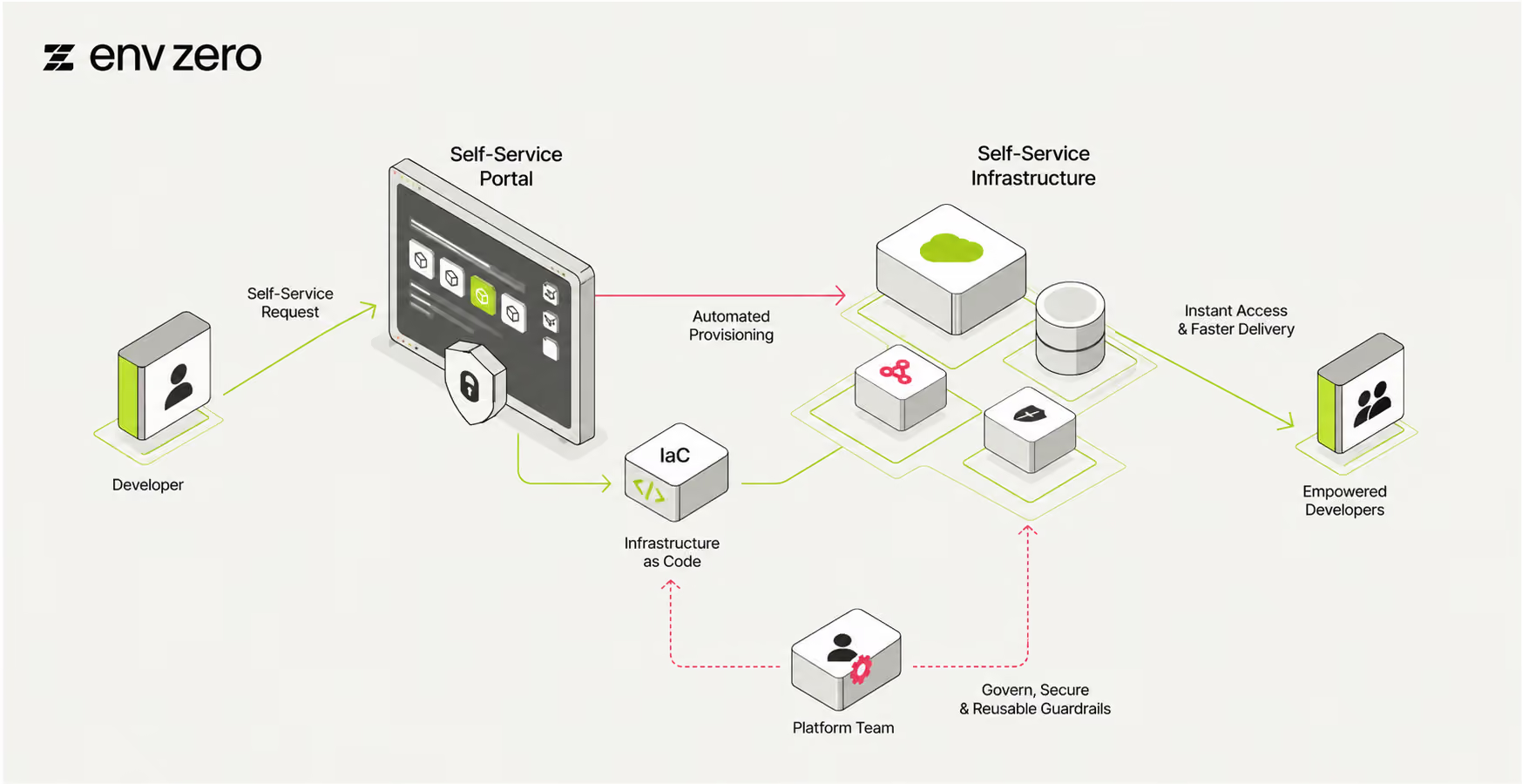
Installing OpenTofu locally is the first step. The next challenge is running it safely and consistently across a whole team — with proper state management, access controls, policy enforcement, and an audit trail.
env zero is built for exactly this. It supports OpenTofu natively alongside Terraform, Terragrunt, and Pulumi — so your team can use whichever IaC tool fits the job, all managed through a single governance platform.
- No local credentials needed — developers trigger OpenTofu runs through env zero's self-service interface without needing direct cloud access
- Centralised state management — state files are stored, versioned, and locked automatically — no manual backend configuration required
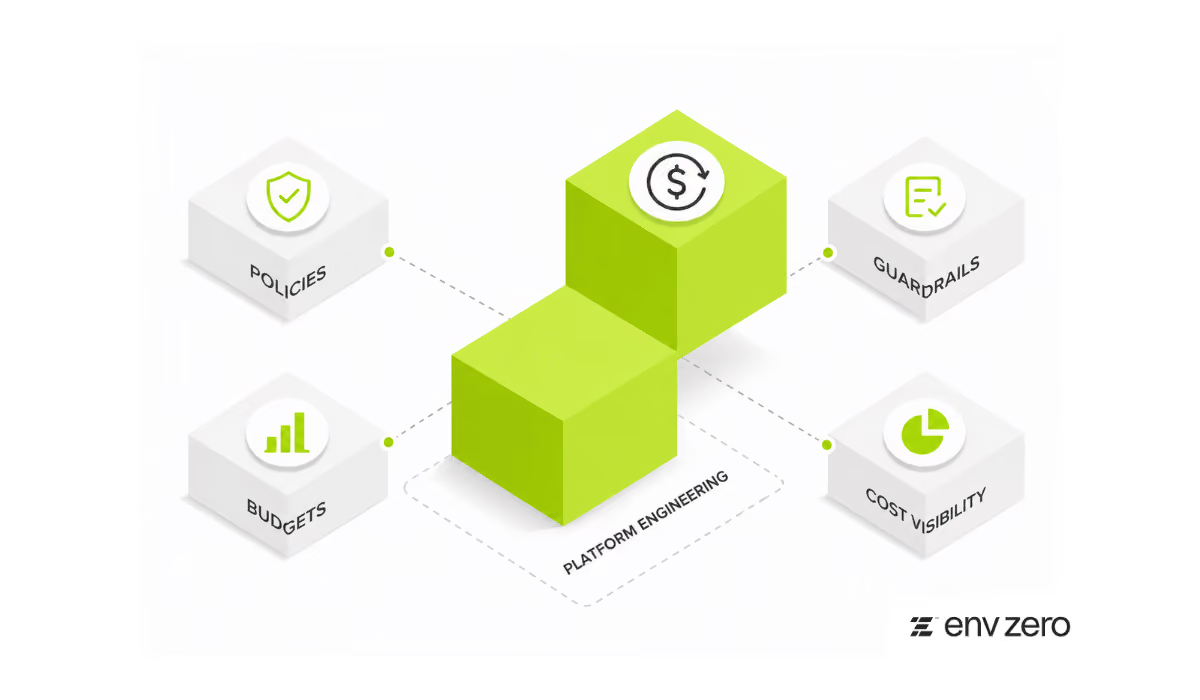
- Policy guardrails — every tofu plan is checked against your organisation's policies before an apply is allowed
- Drift detection — env zero continuously monitors your infrastructure and alerts you when the real state diverges from your OpenTofu code
- Full audit trail — every run, every apply, every change is logged with who did it, when, and what the plan showed
Whether you are just migrating from Terraform to OpenTofu or building a new platform from scratch, env zero gives your team the governance layer to do it safely at scale.
Summary
Installing OpenTofu is quick and straightforward on any platform:
- Linux — use APT, YUM/DNF, or download the binary directly
- macOS — use Homebrew (brew install opentofu) for the simplest experience
- Windows — use Winget (winget install OpenTofu.OpenTofu) or Chocolatey
- tenv — use it for version management across multiple projects and team environments
Once installed, verify with tofu --version, run tofu init in a working directory, and you are ready to go. Your existing Terraform configurations work without any changes.
Frequently Asked Questions
Is OpenTofu compatible with existing Terraform configurations?
Yes. OpenTofu uses the same HCL configuration language, the same provider ecosystem, and the same state file format as Terraform. In most cases, you can switch from Terraform to OpenTofu simply by replacing the terraform binary with tofu. No changes to your .tf files are required.
Can I install OpenTofu and Terraform side by side?
Yes. OpenTofu installs as tofu and Terraform installs as terraform — they are separate binaries that do not conflict with each other. If you use tenv, you can manage versions of both tools independently on the same machine.
What is the latest version of OpenTofu?
OpenTofu releases new versions regularly. Check the official releases page at github.com/opentofu/opentofu/releases for the latest stable version. As of early 2026, OpenTofu 1.9.x is the current stable series.
Does OpenTofu support the same providers as Terraform?
Yes. OpenTofu uses the Terraform Registry for providers, which means all existing providers — AWS, Azure, GCP, Kubernetes, Datadog, and thousands more — work with OpenTofu without any changes. OpenTofu 1.7 and later also supports provider-defined functions, which is a capability not available in Terraform.
What is the difference between OpenTofu and tenv?
opentofu (or tofu) is the IaC tool itself — the binary you use to write, plan, and apply infrastructure. tenv is a version manager that helps you install and switch between multiple versions of OpenTofu (and Terraform) on the same machine. You use tenv to manage OpenTofu, similar to how you might use nvm to manage Node.js versions.
.svg)









.avif)