Infrastructure and application deployment automation is not new. Tools like CI/CD pipelines and more have been around for a while. But what happens when you need to add in other operational tasks? Checking budget, checking performance, checking security. All of these things are very important to the business and should not be an afterthought. In this webinar, we will talk about shifting security left in your Infrastructure as Code Automation workflows.
Related Content

Hello, env zero fans! As some of you know, we have almost unlimited extensibility with 3rd party tools, using our custom workflows. You can hook in pretty much any tool, in any phase of the deployment. Today, we’re going to talk about how to prevent cloud misconfigurations before they start. We’re going to do this by chaining a tool in the deployment after the terraform plan phase. This is where our friends at Bridgecrew come in. Just like we at env zero have open-sourced the Terratag module of our platform, Bridgecrew has open-sourced Checkov!
Checkov
Checkov is a static code analysis tool for infrastructure-as-code. It scans cloud infrastructure managed in Terraform, Cloudformation, Kubernetes, Arm templates, or Serverless Framework and detects misconfigurations.

Setup
For illustration purposes, we’re going to use Bridgecrew’s demo application called TerraGoat. TerraGoat is Bridgecrew’s “Vulnerable by Design” Terraform repository. TerraGoat is a learning and training project that demonstrates how common configuration errors can find their way into production cloud environments.
DISCLAIMER: DO NOT ACTUALLY DEPLOY THIS APPLICATION INTO YOUR CLOUD INFRASTRUCTURE. IT IS PURPOSELY COMPROMISED.
I have created a template of TerraGoat inside of env zero and linked it to our Bridgecrew Demo project.

The only other thing we have to do is to actually call Checkov to do the check during the deployment. We need to do this after the Terraform plan phase, so that we have a plan to check. Here is what the env0.yml file will look like:
This adds 3 commands that run after the Terraform Plan, and before Terraform Apply. We put it here so that the Apply doesn’t run in case of failures. We don’t want to see the errors after the resources are applied. We want the deployment to fail if there are errors.
This command installs Checkov into our runtime environment using the pip3 package installer so we can run it against our Terraform plan.
This command essentially formats our .tf-plan file into tf.json so that it can be parsed and run against Checkov.
This command has a lot going on and is in 2 parts. First, it quietly executes Checkov against our tf.json (the reformatted tf.plan file) and looks for a 0 exit code. The double pipe || tells bash to only execute the 2nd command if the exit code of the first command is not 0. So if your Checkov results are clear, your deployment gets the 0 exit code and continues on with the deployment.
If not, then the second part of the command runs. Knowing if this part runs, it is because of a failure, we’re just going to format our error message here. We run Checkov again so we can pipe the error with the echoed error notification text to the console. The 1>&2 routs stdout to stderror, and the exit 1 code tells env zero that the stage failed, and to end the deployment run.

The env zero platform will parse the error, and give you the clear error printed on the Environment deployment page. But, if you want the full logs from Checkov, you can find those in the After: Terraform Plan deployment logs.

And that’s it! A little bit of YAML, and you’ve implemented Checkov to protect yourself against the deployment of misconfigured cloud resources. That is instantly added value to your organization by shifting the security left in your deployment process with env0.
You can find more information on Checkov here. You can find the open-source repository on GitHub. And be sure to see how you can automate your infrastructure security from commit to cloud at Bridgecrew.io.
‍
Better Together: Checkov and env0


This quick video talks about the static code analysis tool, Checkov by Bridgecrew. We'll use it to fix a problem with a Terraform deployment into Azure. Be sure to star their repository if you like the project.
Checkov, Analysis Tool by Bridgecrew and env0


“All these investments in DevOps and developer productivity and operational efficiency are bottlenecking in these environments on security and compliance.”
This was an observation from Andrew Clay Shafer in a fireside chat with John Willis at DevOps Days Dallas 2022. One such bottleneck can come in the form of audit logs, but auditability doesn’t have to be a blocker.Â
In this post we’ll take a look at why auditing is necessary for Infrastructure as Code, the benefits of having an audit trail for Terraform and other IaC frameworks (such as Terragrunt, Pulumi, CloudFormation, Kubernetes, and others), and share how you can automate your audit trail easily with env0.
How do you audit Infrastructure as Code?Â
All you need is a central log management system that can aggregate and parse your audit. env zero delivers a number of benefits for auditability:
- Changes to infrastructure are tracked in the code repository, making it easy to see who made what changes and when.
- Automatically roll back changes that cause problems.
- Audit changes made by third-party vendors.
Audit log walkthroughÂ
There are two ways to access audit logs in env0, 1) through the UI, and 2) through the API. As always, env zero gives you the flexibility to interact with your infrastructure-as-code as it suits your organization, be it programmatically or through a simple user interface. Only an Admin user can access the Audit Logs.
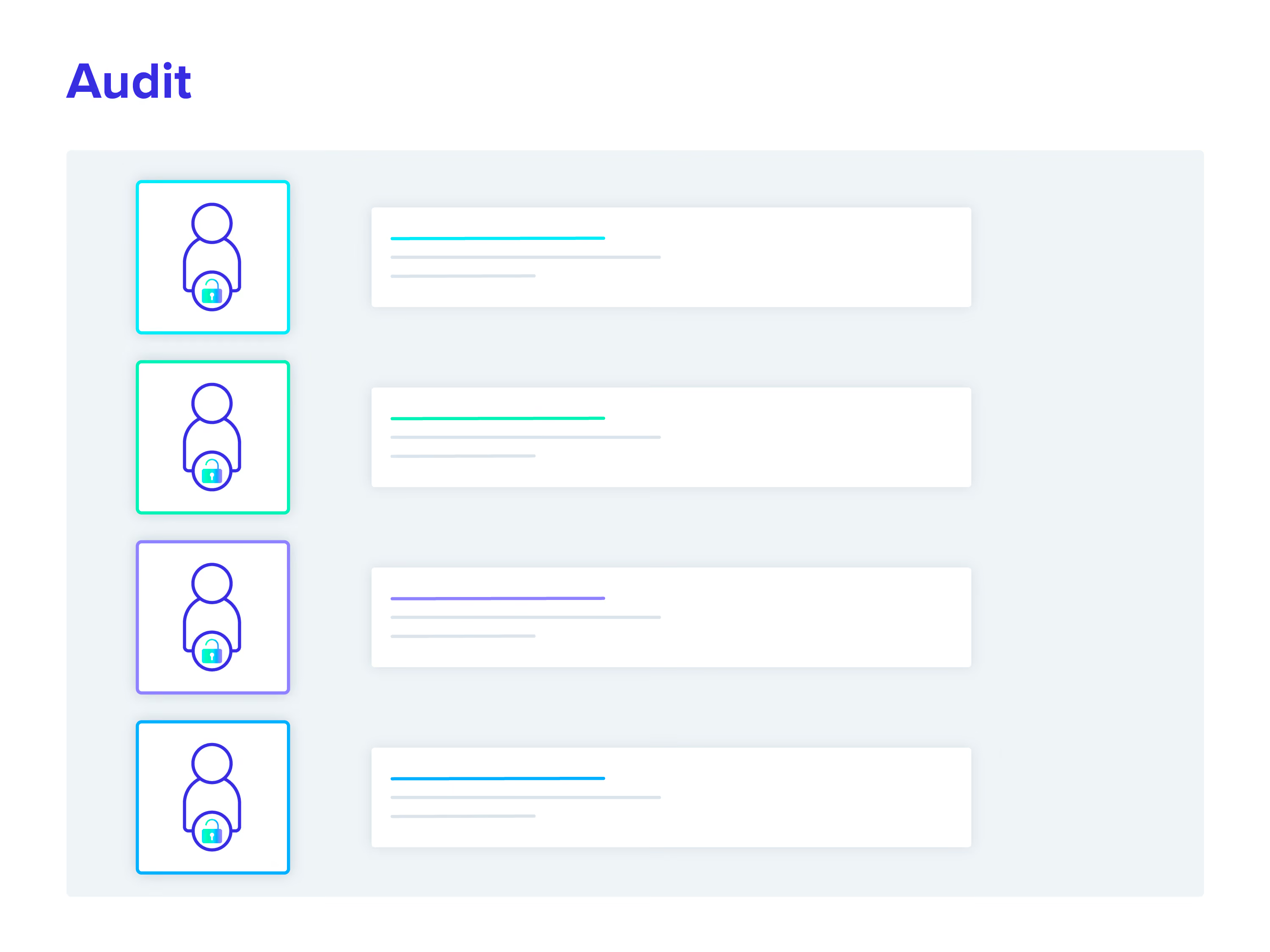
The audit log contains information about who performed the activity, when the action was performed, the activity’s description, and additional data like their IP address.
The audit log shows events related to changes in your:
- Organization
- Projects
- Templates
- Environments
- Teams
- Users
- Roles
- Modules
- Git Tokens
- Cloud credentials
- API keys
- SSH keys
- Variables
- Agent configurations
Through the env zero UI
- Go to the Organization's Settings page.
- Click the Audit Logs tab.
- The audit details are listed in a table.
- Click the row's + sign to reveal additional activity details.
- Click the Show more button at the bottom of the page to see more rows.

Through the env zero API
Use the "Fetch Audit Logs" API to retrieve your organization's audit logs programmatically. Learn more about the audit log in our documentation.
Use an audit log for governance and compliance
With this latest release, we’re continuing to deliver the enterprise-level capabilities to enable DevOps, Platform, and Infrastructure as Code teams to deliver secure software faster while ensuring compliance with internal policies or external regulations. env zero has clearly auditable versioning of infrastructure changes, giving you the answer to questions like, “What was changed, who changed it, and when was it changed?”Â
We help you avoid the audit and compliance bottleneck, so you can focus on what’s important—shipping software.
You Need Audit Logs for Your Infrastructure as Code, and They’re Easy to Set Up


In this guide, we will be exploring three IaC scanning tools, Checkov, tfsec, and Terrascan. We will go into detail of each tool, as well as compare the features of all three. You can explore the other parts of this guide below.
Jump to section:
‍
Checkov vs tfsec vs Terrascan: Which IaC Scanning Tool is the Best?
Infrastructure as Code (IaC) is a popular approach to automate the provisioning and management of cloud computing resources using declarative configuration files. However, IaC also introduces new security challenges and risks that need to be addressed before deploying to production. In this blog post, we will compare three popular IaC scan tools: Checkov, tfsec, and Terrascan. These tools can help you identify and fix security issues in your IaC code before they become vulnerabilities in your cloud environment. We will compare them based on their features, performance, usability, and compatibility with different IaC frameworks and cloud providers.
Comparing IaC Scan Tools:Â Video walkthrough
Our setup
Let’s take a look at our setup.
Requirements
- A GitHub account (all the hands-on sections will utilize GitHub’s Codespaces so you won’t need to install anything on your machine)
Repository
TL;DR: You can find the repo here.
What is an IaC scan tool and what is it used for?
Alright, before we dig in, let’s get an understanding of a few concepts.Â
An IaC scan tool is a software application that analyzes your IaC files and detects security vulnerabilities, misconfigurations, compliance violations and other issues. IaC scan tools improve the quality and security of IaC files before they are deployed to cloud environments. These tools can help developers, DevSecOps and DevOps teams identify and fix potential problems in their code early in the development lifecycle, reducing the risk of potential data breaches, data leaks, downtime and other incidents.
What is Static Code Analysis?
Static code analysis is a method that examines the source code of a program without running it. Static code analysis tools can automate this process and detect possible errors, security vulnerabilities, and code quality issues. Static code analysis can help developers find and fix problems early in the development cycle, before they become more costly and difficult to resolve. Static code analysis can also help ensure that the code meets certain standards and guidelines, for such issues as coding style, performance, or compliance.
How does IaC scanning work?
IaC scanning works by applying a set of rules or policies to the IaC configuration files that check for common security best practices, such as encryption, authentication, authorization, logging, and monitoring. The rules or policies can be based on industry standards, such as CIS benchmarks, or customized to fit the specific needs of the organization. The IaC scanning tools can then generate a report that shows the results of the analysis, such as the number and severity of vulnerabilities found, the location of the vulnerable code, and the recommended remediation steps. The scan report itself can also be integrated with other tools, such as GitLab or GitHub, to provide feedback and guidance to developers in their workflows.
Why do you need IaC security scanning?
Imagine you are building a house and you have a blueprint that shows how everything should look and work. You wouldn't want to start construction without checking the blueprint for errors, right? You might end up with a leaky roof, a crooked wall, or faulty wiring. That's why you need IaC security scanning. It helps you find and fix any issues in your infrastructure as code before you deploy it to the cloud. It's like having a quality assurance team for your blueprint. IaC security scanning can save you time, money, and headaches in the long run.
Which IaC scanning tools exist?
Some of the most popular IaC scanning tools are checkov, tfsec, and terrascan. These tools can help you identify common vulnerabilities and best practices in your IaC code, such as Terraform, CloudFormation, Kubernetes, and more. However, they are not perfect and they may have some limitations or false positives. Here is a brief comparison of these three tools and later we will dig deeper into each one.
- Checkov: A comprehensive tool that supports Terraform, CloudFormation, Kubernetes, Helm, Serverless Framework, and more. It has a rich set of features and integrations, such as pre-commit hooks, GitHub actions, VS Code extension, etc. However, it may be slower and more complex than other tools.
- tfsec: A fast and lightweight tool that supports Terrafor. It has a simple installation process and a nice output format. However, it may not cover all the resources or scenarios that you need.
- Terrascan: A modular tool that supports Terraform, Kubernetes, Helm, Dockerfiles, and more. It has a flexible architecture that allows you to write your own policies using Open Policy Agent (OPA). However, it may have a steeper learning curve and less documentation than other tools.
As you can see, there is no one-size-fits-all solution for IaC scanning. You may need to try different tools and see which one works best for your use case. Or you may need to use a combination of tools to achieve the best results. The important thing is to scan your IaC code regularly and fix any issues that you find before they become a problem.
‍
Which IaC Scanning Tool is the Best?: Comparing Checkov vs tfsec vs Terrascan


In this section of the IaC Scanning Tools Guide, we will be looking at tfsec and discussing the benefits, key features, and looking at some real world examples. You can explore the other parts of this guide below.
Jump to section:
- What is an IaC scan tool?
- What is Checkov?
- What is Terrascan?
- Comparing Checkov vs. tfsec vs. Terrascan
What is tfsec?
tfsec is a security scanner for your Terraform code. It performs static analysis of your code and detects potential misconfigurations that could lead to security risks. It supports multiple cloud providers, such as AWS, Azure, and GCP, and has hundreds of built-in rules. It also allows you to define your own custom rules using Rego policies or JSON/YAML custom policies. You can run tfsec locally or in your CI pipelines, and get developer-friendly output in various formats. tfsec is an open-source project backed by Aqua Security that aims to help you secure code in your IaC.
Benefits and Key Features of using tfsec
Some benefits and key features of using tfsec are:
| Feature | Details |
|---|---|
| Scanning IaC | Yes for security and compliance before deployment |
| IaC Frameworks Supported | Only Terraform |
| Reporting | Detailed reports and recommendations for fixing the detected issues in different formats such as text, JSON, CSV, Checkstyle, JUnit, and SARIF. |
| Integrations | Many tools including GitHub Actions, GitLab CI, and VS Code |
| Policy Customizations | Yes using JSON or YAML |
| Open-source | Yes |
| Example of Issues that can be detected | Insecure use of plain text secrets or hard-coded credentials Misconfigured network access rules or firewall settings Unencrypted data storage or communication Missing or outdated security features or patches Non-compliance with industry standards or regulations |
How to get started with tfsec
How to install tfsec?
There are several ways to install tfsec on your system. You can use a package manager such as brew (for macOS or Linux), choco (for Windows), or scoop (for Windows). You can also download the binary for your system from the releases page on GitHub. Alternatively, you can install tfsec with Go using the command:
go install github.com/aquasecurity/tfsec/cmd/tfsec@latest
If you don't want to install tfsec on your system, you can also run it in a Docker container using the command:
docker run --rm -it -v "$(pwd):/src" aquasec/tfsec /src
If you follow along with our GitHub repo using Codespaces, it will be installed for you.
How to use tfsec?
To use tfsec, you simply need to run it on a directory that contains your Terraform code. For example:
tfsec ./Terraform
By default, tfsec will use a lovely output format that shows the severity, description, location, and resolution of each problem. You can change the output format using the --format flag.Â
For example:
tfsec ./Terraform --format json
This will output the results in JSON format. You can also use other formats such as csv, checkstyle, junit, sarif, text, markdown, html, and gif.
You can also customize the behavior of tfsec using various flags or a configuration file. For example, you can exclude certain checks using the --exclude flag. You can also enable or disable colors, force exit codes, ignore warnings or errors, set custom paths for modules or policies, and more. For a full list of flags you can run tfsec -h
Example use cases of tfsec
Use case 1: Scan your Terraform code for security issues before applying it
One of the most common use cases of tfsec is to scan your Terraform code for security issues before applying it to your cloud environment. This way, you can catch and fix any problems before they cause any damage or expose any vulnerabilities.
Let’s scan the same folder we scanned with checkov. Run the following commands:
tfsec ./Terraform
This will scan all the Terraform files in the current directory and print out a report of any issues found. For example:


As you can see, tfsec provides a clear and concise output that shows the location, severity, and description of each issue. It also provides a link to the documentation page where you can learn more about the issue and how to fix it.
Use case 2: Scan your Kubernetes manifests
Unfortunately, tfsec does not support scanning Kubernetes manifests. It was built specifically to scan Terraform files.
tfsec Custom Policies
Similar to checkov, you can create custom checks in tfsec either using YAML or JSON or using Rego. Let’s create a check similar to the one we did with checkov. We shouldn’t allow an S3 bucket’s ACL to be public-read when it is tagged with the key Scope and the value of PCI.Â
Custom checks are defined as JSON files or YAML files which sit in the .tfsec folder in the root check path. Any file with the suffix tfchecks.json or tfchecks.yaml will be parsed and the checks included during the run.
Check the pci_policy_tfchecks.yaml in the .tfsec folder in our repo. Below is the content:
---
checks:
- code: CUS999
description: Make sure S3 bucket ACL is NOT public-read if it has a Scope=PCI tag
impact: We would violate our PCI compliance
resolution: Make sure the ACL is not public-read
requiredTypes:
- resource
requiredLabels:
- aws_s3_bucket
severity: CRITICAL
matchSpec:
action : or
predicateMatchSpec :
- action : notContains
name : tags
value:
Scope: "PCI"
- action : notContains
name : acl
value: public
errorMessage: S3 bucket ACL is public-read with Scope=PCI tag
relatedLinks:
- http://internal.acmecorp.com/standards/aws/tagging.html
Use the normal command to run:
tfsec ./Terraform
And examine the output:

‍
What is tfsec: Benefits, Key Features, and Examples


In this section of the IaC Scanning Tools Guide, we will be looking at Terrascan and discussing the benefits, key features, and looking at some real world examples. You can explore the other parts of this guide below.
Jump to section:
What is Terrascan?
Terrascan is a tool that helps you to scan your Infrastructure as Code for security and compliance policy violations. It supports various IaC languages such as Terraform, Kubernetes, Dockerfile, and more. It also integrates with different cloud platforms such as AWS, Azure, and GCP. Terrascan can detect over 500 policies for best practices and prevent risks before provisioning cloud infrastructure. You can run Terrascan locally or in your CI/CD pipeline to automate the scanning process.
Benefits and Key Features of using Terrascan
Some of the benefits and key features of using Terrascan are:
| Feature | Details |
|---|---|
| Scanning IaC | Yes for security and compliance before deployment |
| IaC Frameworks Supported | Multiple IaC frameworks such as Terraform, Kubernetes, Helm, Kustomize, and more |
| Reporting | Detailed reports and recommendations for fixing the detected issues in different formats such as JSON, YAML, XML, JUnit XML, and SARIF |
| Integrations | Many tools including GitHub, GitLab, Jenkins, Azure DevOps, and more |
| Policy Customizations | Yes using Rego, a declarative language for policy enforcement |
| Open-source | Yes |
| User Interface | CLI interface as well as a REST API and a web UI for easy usage and automation |
How to get started with Terrascan
Installing Terrascan
There are several ways to install Terrascan, depending on your preference and platform. You can download the binary from the GitHub releases page, install it using Homebrew or run it as a Docker image. For example, to install Terrascan on macOS using Homebrew, you can run the following command:
brew install terrascan
To verify that Terrascan is installed correctly, you can run:
terrascan version
You should see the output similar to this:
version: v1.18.1
If you’re following along in our GitHub repo with codespaces, terrascan is already installed for you.
Scanning your IaC code
To scan your IaC code for security issues, you can use the terrascan scan command. By default, Terrascan will scan the current directory for Terraform files and report any violations found. You can also specify the type of IaC using the -i flag, such as -i k8s for Kubernetes or -i dockerfile for Dockerfile.
For example, to scan a single Terraform file, you can run:
terrascan scan -f Terraform/s3.tf
You should see the output similar to this:

As you can see, Terrascan has detected one high-severity violation that indicate that the S3 bucket versioning is recommended for easy recovery from unintended user actions.
Example use cases of Terrascan
Use case 1: Scan Terraform Files
Now let’s scan our same Terraform files using Terrascan. Run the following commands:
terrascan scan -d ./Terraform
Let’s examine the output:


Use case 2: Scanning Kubernetes manifests
Let’s see how terrascan performs when it comes to Kubernetes manifests. Run the following commands:
terrascan scan -d ./Kubernetes -i k8s
And here is the output:


Terrascan Custom Policies
Once again, let’s create a custom policy. We will use Rego with Terrascan to check if an S3 bucket has an ACL that is public-read with a tag Scope=”PCI”.
First, you will need to install the OPA binary. On Linux you can use the following script:
curl -L -o opa https://openpolicyagent.org/downloads/v0.51.0/opa_linux_amd64_static
And on Mac use:
curl -L -o opa curl -L -o opa https://openpolicyagent.org/downloads/v0.51.0/opa_darwin_amd64
Once again, if you are following along with GitHub codespaces, it will already be installed for you.
Now let’s examine the files you will need. You need to files, a .json one where you specify a few attributes of the policy and a .rego file where you define the actual policy.
We’ve included these 2 files in the terrascan_custom_policy folder in our repo under the Terraform folder.
Below is the content of the pci_policy_terrascan.json file:
{
"name": "PCI_S3_PUBLIC_READ",
"file": "pci_policy_terrascan.rego",
"policy_type": "AWS",
"resource_type": "aws_s3_bucket",
"template_args": {
"name": "PCI_S3_PUBLIC_READ",
"prefix": "",
"suffix": ""
},
"severity": "HIGH",
"description": "Make sure S3 bucket ACL is NOT public-read if it has a Scope=PCI tag",
"category": "Identity and Access Management",
"version": 1,
"id": "pci_policy_terrascan"
}
And below is the content of the pci_policy_terrascan.rego file:
package accurics
{{.prefix}}{{.name}}{{.suffix}}[array.id] {
array := input.aws_s3_bucket[_]
array.config.acl == "public-read"
array.config.tags == {"Scope": "PCI"}
}
An easy way to generate the above two files is to use the Terrascan Rego Editor VS Code extension.
Now we’re ready to run our scan, you can use the command below that will do it for us. Notice how we use the --policy-path to point to the directory where our custom rego policies live. The second --policy-path flag points to the general place where terrascan stores all its policies. If you omit the last --policy-path you will only run the scans for the custom policy that we created.
terrascan scan --policy-path ./Terraform/terrascan_custom_policy --policy-path ~/.terrascan/pkg/policies/opa/rego}
Finally, the output will be as shown below:

What is Terrascan: Benefits, Key Features, and Examples